On Start9 0.4.0 Beta (latest) : Every time there is an internet outage Alby hub fails to reconnect automatically once start OS internet is back online.
In order to get Alby Hub back online I need to manually restart Alby Hub service and Re-login with Authentication code & password for the AlbyHub service and Alby Go to start working again (Several tries required). This happens consistently without fail.
I have Restarted the server and Alby Hub service with no luck. This makes Alby Hub very unstable and unreliable. This problem started to happen with latest version of AlbyHub on Start OS 040 Beta. Is this a known issue? Is anyone else having this problem?
(Im running the latest version of Albyhub 1.23.0:1)
Alby Hub Support (Discord) is no help and full of scammers. Anything I can try to troubleshoot this?
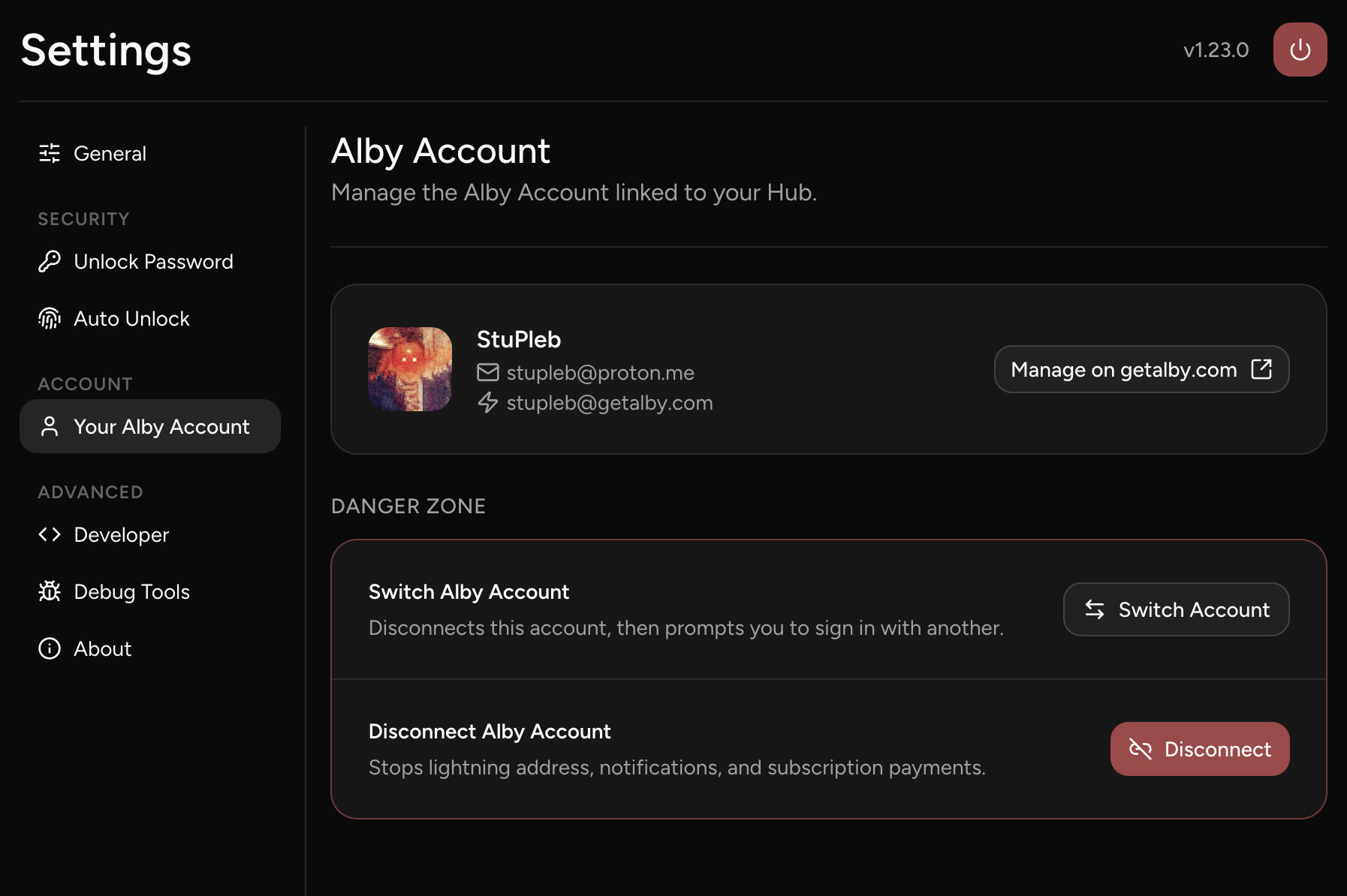
Within the Alby Web UI there’s a configuration setting to save the password so that when Alby restarts it auto-logs in. This would deal with power outages though, not internet outages. If the Alby service is never stopped on the server, it wouldn’t need to log in.
Anything else you’re describing, about authentication code, reconnecting with a remote hosted Alby account isn’t explained by the internet connected disappearing and reappearing. I’m struggling to see how it it could be related to the service on StartOS.
The Alby Account, while options, is baked into the service:
There’s no mechanism to unset that if the server is disconnected from the internet. The only possible way a bug like that could appear is if the service wasn’t persisting the data, so it sees a fresh Alby UI each time you restart the service. I take it that doesn’t happen?
keep getting this every time i try to enter authorization code given by alby hub. Restarted the service and restarted LND. still same error. this is the dance that i must do every time there is a network outage. After several failed tries followed by a complete server restart, then it will ask for password and finally Alby hub comes back online.
I’ve only started to experience this after upgrading to 040 Beta with latest version of Alby Hub.
Anything else you recommend that I try so we can get to the bottom of this? Thank you.
I’d need you to run a few harmless read-only commands on your server while the problem is happening and send us what they print. This takes about 5 minutes.
Part 0 — Do this while everything is working
We need to be sure you can reach your server before the next outage, and we need one “healthy” report to compare against.
Open a terminal on your computer.
Windows: press the Windows key, type powershell, press Enter.
Mac: press Cmd+Space, type terminal, press Enter.
Connect to your server. Type the following and press Enter, replacing server-name with your server’s name as shown in the StartOS web interface:
ssh start9@server-name.local
If it asks “Are you sure you want to continue connecting?” type yes and press Enter.
When it asks for a password, type your StartOS master password (nothing appears while you type — that’s normal) and press Enter.
You’re connected when the line ends with a $ sign.
Become administrator. Type this and press Enter, then enter your password again if asked:
sudo -i
Run the report. Copy the entire grey block below (all of it, in one go), paste it into the server window (in PowerShell: right-click pastes), and press Enter. It only reads information — it changes nothing.
ROUTER=$(ip route show default | awk '{print $3; exit}')
echo "########## BEGIN DNS REPORT ##########"
date
echo; echo "===== 1. Router address ====="
ip route show default
echo; echo "===== 2. DNS servers StartOS learned from your network ====="
cat /run/systemd/resolve/resolv.conf
echo; echo "===== 3. Lookup through StartOS itself (what Alby Hub uses) ====="
dig @10.0.3.1 api.getalby.com +time=3 +tries=1
echo; echo "===== 4. Lookup through your router ====="
dig @$ROUTER api.getalby.com +time=3 +tries=1
echo; echo "===== 5. Lookup through public internet DNS ====="
dig @1.1.1.1 api.getalby.com +time=3 +tries=1
echo; echo "===== 6. StartOS DNS log messages, last 6 hours ====="
journalctl -u startd --since "-6 hours" | grep -iE "dns|catalog" | tail -50
echo "########## END DNS REPORT ##########"
Copy everything between BEGIN DNS REPORT and END DNS REPORT (scroll up if needed), paste it into a text file or message, and label it “HEALTHY baseline”. Send it to us.
Part 1 — Do this during the NEXT failure
Timing is everything here. Wait until:
your internet has come back (your phone or laptop can browse the web again), and
Alby Hub is still broken (you still get the “Failed to connect / i/o timeout” error).
At that moment — before restarting Alby Hub, before restarting LND, and before rebooting the server — repeat Part 0 steps 1–5 exactly, and label the result “DURING FAILURE”. This is the report that actually solves the mystery, and rebooting first destroys the evidence.
Part 2 — The recovery test (still during the failure, right after Part 1)
This command tells StartOS to stop using your router for DNS lookups and use well-known public servers (Cloudflare 1.1.1.1 and Quad9 9.9.9.9) instead. In the same server window, type:
start-cli net dns set-static 1.1.1.1 9.9.9.9
Wait about 30 seconds, then — without restarting anything — try Alby Hub again, and also run this one command and save its output:
dig @10.0.3.1 api.getalby.com +time=3 +tries=1
Then tell us: did Alby Hub start working, yes or no? Either answer is useful.
If yes: your router’s DNS was the problem. You can simply leave this setting in place permanently — it is a fix, not just a test.
If no, or if you want to undo it later: run start-cli net dns set-static (same command, no numbers) to go back to normal.
Part 3 — Send us the results
Send us three things: the HEALTHY baseline, the DURING FAILURE report, and your yes/no from Part 2. Please paste the output unedited — addresses that start with 10. or 192.168. are private to your home network and reveal nothing about you. (In your earlier report the redactions hid the exact detail we needed.) If you’d rather not share your server’s name, replacing just that word is fine.
When you’re done, type exit twice to disconnect from the server.
AlbyHub Settings and enabling Auto Unlock fixed the problem for me. This was off by default. Now Albyhub / Alby Go is working on system / network reboot. Hope this helps.